This article explains the two available configuration options for time off measurement within HRWize.
The system can be set to display and manage time off in either hours or days. This setting directly impacts how employees submit their time off requests:
- When configured in hours, requests are entered and displayed in hours.
- When configured in days, requests are entered and displayed in days.
Understanding this setting will help ensure your configuration aligns with your organization’s policies and user experience.
Navigate to People - Employees - Benefits
Options:
1. Days - When selected, any number you put in the time off allowance (time off types created) field will reflect in the employees time off wheel in "days".
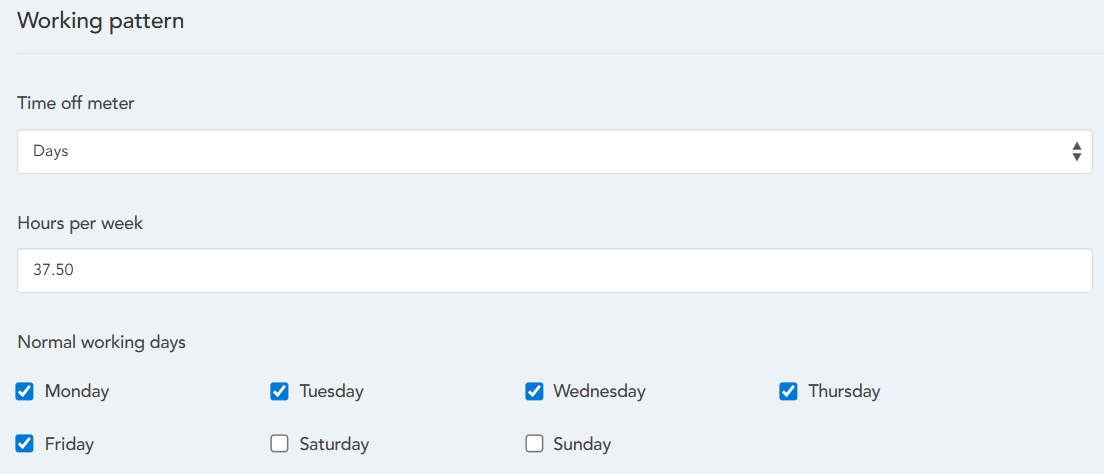
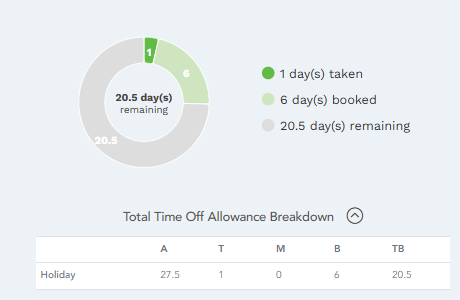
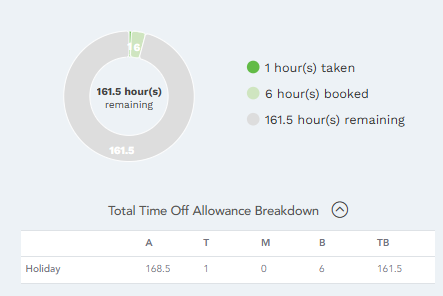
2. Hours - When selected, any number you enter in the time off allowance field will reflect in the employees wheel in "hours".
You will notice a field appear where you can add total working hours per day.
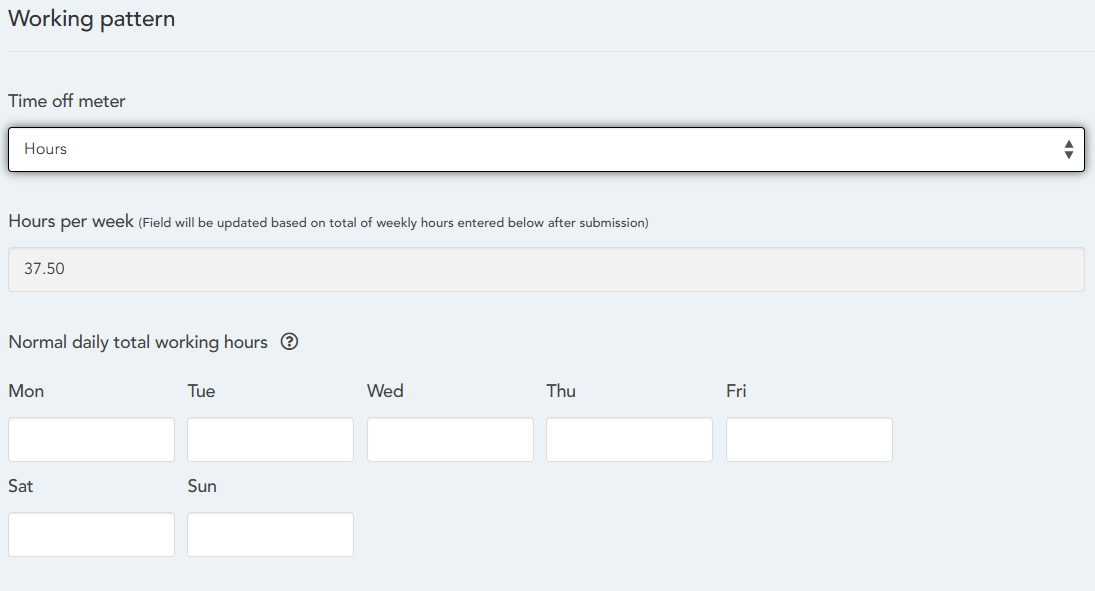
N.B. You will notice the "Hours per week" field will be greyed out when the "Hours" meter is selected. You need to change the meter to days to make the change in the "Hours per week" field and then converted back to hours once complete. OR fill in the "Normal daily total working hours" for it to update automatically. Don't forget to submit when you are ready to save your changes (if any).
HRWize
Comments