When you create a form you can add a number of different form fields. Each form field can operate slightly differently therefore to review the types of Form Fields please read the article - Form builder field types
This Article will cover the other settings that can appear when adding a Form Field. The following is each Setting and a brief description of how they operate:
Field Display Label - The Field display Label is what will be visible to the Employee/User who is completing the form. For example if the Field Display Label is set as What is the cars make? When the Employee goes to complete the form they will see that this field is requiring them to enter a cars make such as Ford
Mandatory Field - This will make the field be mandatory therefore not allowing the Employee to complete the form until the field has data/a selection made.
Field Type - This is the type of field such as Text Box or Dropdown. If you wish to know about each type of field please read - Form builder field types
Values - When certain field types are selected a Values field will appear. For example a Checkbox field type. When selected you will then enter each value that you want to appear against the checkboxes separated by a comma for example: Hatchback,Estate,4x4,Sedan. Once created the form will then display all checkboxes values:

Field Access - Field Access is who can see/edit the given field, there are a number of available options when selecting a field access:
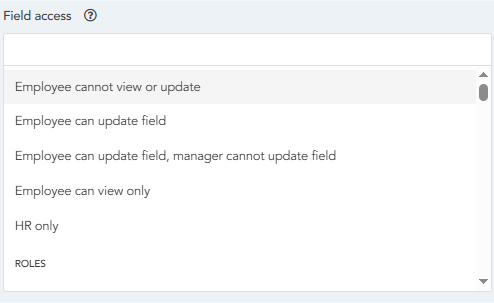
- Employee cannot view or update - This will result in any Employee level user attempting to fill in the form will not be able to view the form field or add any data in to the form field. The Field will still be visible to Managers and above user groups.
- Employee can update field - The field is available to all user groups including Employees and will be editable by all.
- Employee can update field, manager cannot update field - Employee level users can see and edit the form field. Manager level users can see the form field but cannot edit or input any data. HR and Admin Level Users will be able to edit/view the form field.
- Employee can view only - Employee can view what data has been inputted, Manager level users and above can edit the form field.
- HR Only - Only HR and Admin access level users can see and edit the form field.
Note: Fields can also be restricted by roles like Employee, Employee's Manager etc. as well as being restricted to specific users which are selectable within this dropdown list if this has been done only that specific user group or individual will be able to view and edit the field.
Show Advanced Options - This is a switch that will toggle the Advanced options below to then appear.
Database Field Name - The field name as stored within the Database. This will then appear if the data is downloaded from the system via Backups or Download All Form Data.
Clone Field - This yes no field will mark the field as being able to be cloned. Cloned fields when put between Clone Start and Clone End sections will then be cloned when an employee selects the clone fields option. To find out more please read our article on Clone Fields.
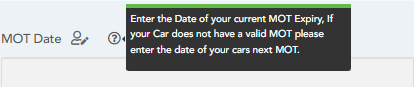
Field Description - This setting will result in a Tooltip appearing on the Field when the Employee/User is filling in the form. For example if the Field is for collecting in the Date of an Employee's MOT. You may want to add a Tooltip stating "Enter the Date of your current MOT Expiry, If your Car does not have a valid MOT please enter the date of your cars next MOT" This will then display next to the field for the Employee/User to review:
Uneditable once completed - Once this field has data entered within it and the form submitted the field will no longer be editable by any user.
Field regex - Certain field types allow for a Field Regex. Regex is a sequence of characters that specifies a search pattern in text. You can use this to ensure that data entered into this field matches a specific pattern including the character types, allowed characters, lengths and more. If adding a regex, we strongly advise you use the field description above to advise your users of the valid values they can enter.
Note: Our support teams cannot offer support on building or validating regex patterns
Field Order - The order of the fields in the form starting from 1 and ascending.
Field Weighting - This setting allows you to set the percentage weight for this field. For example in a survey you may want some fields to have a higher percentage score. Allowing you to export the forms data to see a Calculated Field containing the Employees overall score based on the form fields weighting. Note: If using this setting please ensure the value entered by the Employee is numeric.

Minimum Length - Certain field types such as Text Box - Multiple Line have a minimum length of characters field that can be entered into the field. For example if you are requiring somebody to enter a cars registration plate you may want to set the minimum length to 7 resulting in them not being able to put less characters into the field.
Maximum Length - Certain field types such as Text Box - Multiple Line have a maximum length of characters field. The maximum length of characters that can be entered into the field. For example if you are requiring somebody to enter a cars registration plate you may want to set the maximum length to 7 resulting in them not being able to add any further data.
Assigned employee / candidate field reload form - This field will only appear when using assigned employee or an assigned candidate field.
HRWize
Comments