Once an employee has left your company their employee record is moved to the archived section of the system which is found by going to -
People - Employees
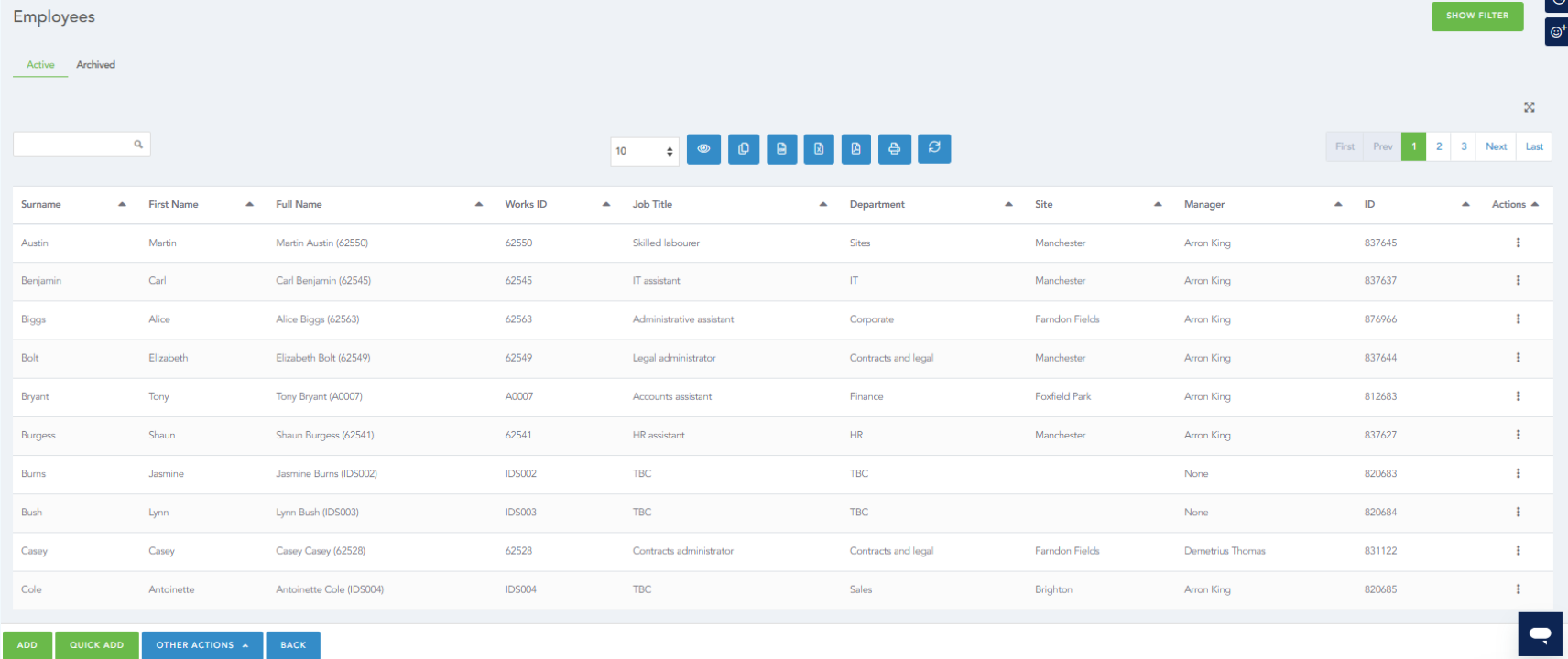
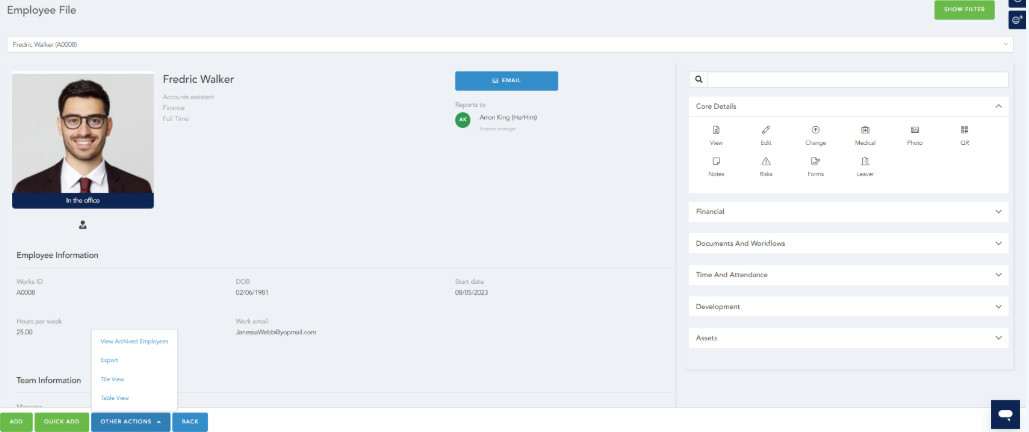
Dependant on your default Employee View, you can access archived in the following methods:
Table view, select Archived in the top left hand corner:
Card view, you can select Other Actions - Archived Employees:
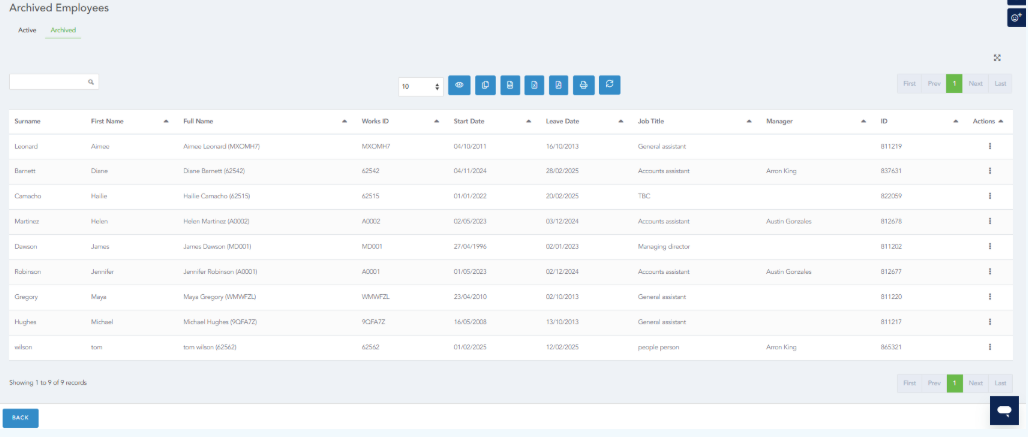
You will be presented with a list of your archived employees. From time to time you may need to access these records for different tasks and whilst you can do some basic functions from the archived screen you may occasionally need to restore these employees to make some more major adjustments:
Restoring an Employee
If you have an employee who is returning to the company and resuming with the company with no break in their length of service then you are able to select the restore option against the archived employee shown below -
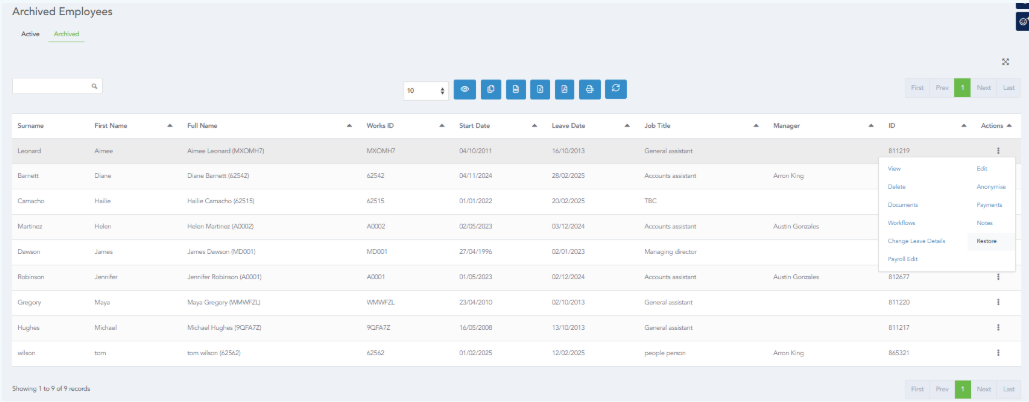
This will remove any current leave information and return the employee to the list of active employees.
Note: This option is only suitable if there is no break in Length of Service, if the employee is joining again from 'scratch' it would be better to add this employee in again as a new employee to save any issues with previous allowance overlapping.
Selecting restore will also create a Re-joiner History Record. This will affect any attrition rate stats. If done accidentally you may need to navigate to Admin - HR - History - Employee Re-joining History
Viewing extra information
From time to time you may need to restore an employee to view information not readily available from the archived employee section such as time off allowances and bookings whilst maintaining the leaver information. In this case, if you select the 'Edit' option from the Actions menu and you will be presented with the following screen -
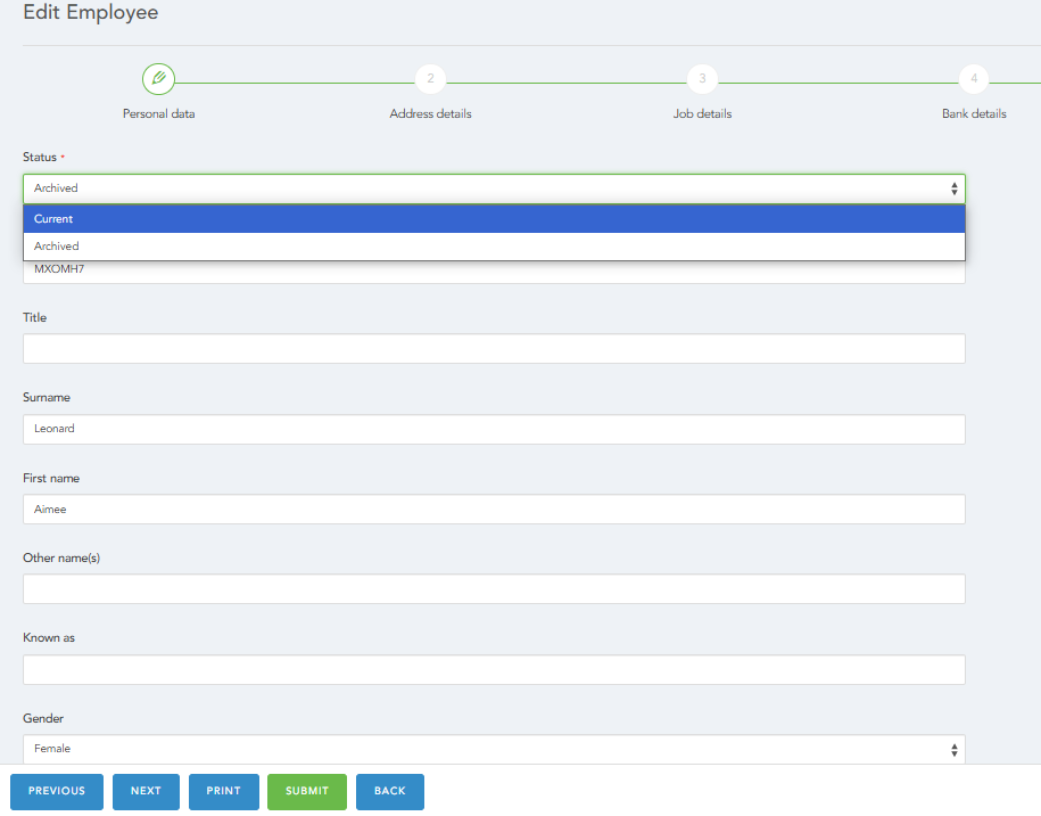
If you change the highlighted option from 'Archived' to 'Current' this will move the employee back to the list of active employees, once you have finished you can select 'Edit' from the employee card/table and change status back to archived without needing to make the employee a leaver and in turn preserving the leave dates.
HRWize
Comments