Workflows are a powerful feature within the system that enable users to automate routine tasks and improve efficiency. This article provides an overview of best practices for designing and implementing effective workflows, helping you make the most of the system's automation capabilities. The following are contained within this article:
- Sequencing your workflow steps
- Altering your workflow steps
- Archiving old workflows
Sequencing your workflow steps.
When creating your workflow steps it is best to have the workflow follow an effective timeline/sequence.
Below is an example of a 7 workflow step task offboarding workflow that has a sequence with steps before and after the employees last working day:
-
Step 1:
- Name = Send email to Employees Manager notifying of Employee leaving and tasks to be completed.
- Step Type = Send Email
- Recipient = Employees Manager
- When should this happen? = 0 days after creation date.
-
Step 2:
- Name = Send exit letter to Employee
- Step Type = Create Template
- When should this happen? = 14 days before employees last working day.
-
Step 3:
- Name = Send exit letter to the Employee for signing
- Step Type = Send Document for Signing
- When should this happen? = 1 days after last workflow action
-
Step 4:
- Name = Notify Payroll of Employees imminent departure
- Step Type = Send Email
- When should this happen? = 7 days before employees last working day.
-
Step 5:
- Name = Send Exit Form to be completed during exit interview
- Recipient = Employees Manager
- Step Type = Send new form
- When should this happen? = On last working day.
-
Step 6:
- Name = Send email to IT to revoke access
- Step Type = Send Email
- When should this happen? = 1 days after employees last working day.
-
Step 7:
- Name = Send email to recruitment to advertise for vacant job role.
- Step Type = Send Email
- When should this happen? = 7 days after employees last working day.
In the above example the timeline for this workflow is that Steps 1-4 will happen before the employees last working day. Step 5 will occur on the employees last working day and then Steps 6-7 will trigger after the employee has left. Therefore the steps are in the correct sequence of events of how we want them to trigger.
Altering workflow step types
If you have a workflow that is active in your system and you want to edit the workflow steps the best practice is if they edit is cosmetic for example, editing wording in an email then these changes can be done.
If the the change to the workflow is to alter the step type of a specific step. We recommend creating a brand new step, putting the step into the correct order and then removing the existing step.
For example the below workflow contains 9 steps:
If I needed to alter the workflow step for "HR determine need to inform WFM of leaving employee" from a Yes/No to a Send Email. We would create the new workflow step by selecting Add Step and filling in the relevant information. And then in the Workflow Step Order entering 3.
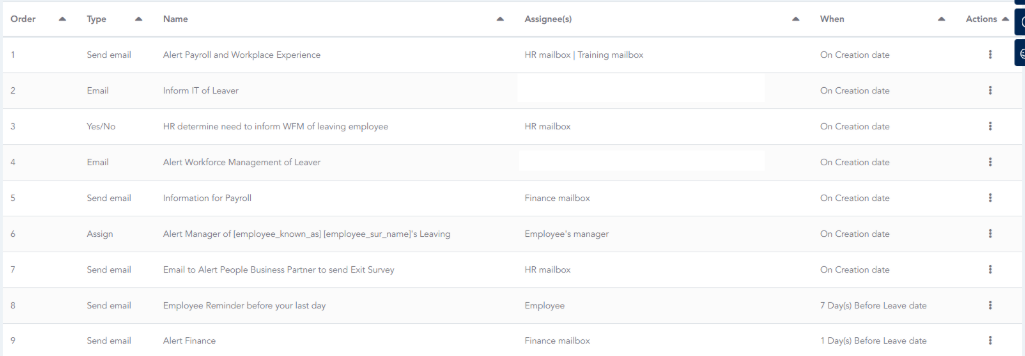

Now with the step created we will see two steps designated to 3 within the Workflows ordering:

Then we can remove the step 3 that we no longer require by selecting Actions - Delete. Resulting in a new step and no alterations/edits causing an issue.
Archiving Old Workflows
If a workflow is no longer in use or required, for example you have used a Continuous workflow to send out a Survey Form on the 4th of August 2025. If left active when the next year rolls around the workflow will re-trigger on the 4th of August 2026 and so on.
To stop this you can Archive workflows that are no longer in use. To archive a workflow in your system navigate to:
Admin - HR - Workflows
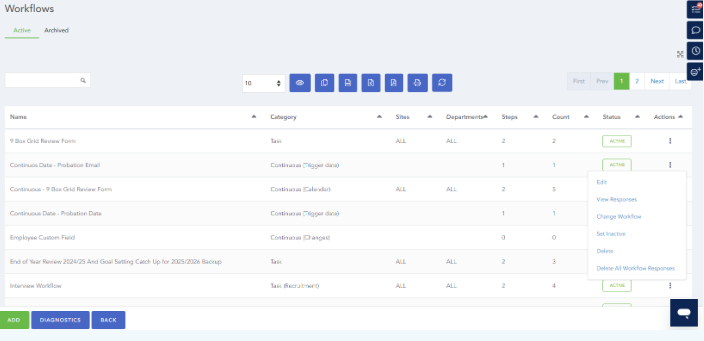
Select the Actions - Set Inactive option. This will then Archive the Workflow and stop any further triggers of the workflow in the future.
HRWize
Comments